






Are you running out of storage space but still need to download and save files? Unable to access cloud services like Google Drive, OneDrive, or Dropbox without an internet connection? TreeSize is a powerful solution to quickly check folder sizes, free up storage, and remove unnecessary files. With TreeSize Free, you get a comprehensive overview of which files are consuming the most space, making it easy to manage your storage efficiently. In this guide, TOS will walk you through how to download and use TreeSize Free quickly and effectively.
Learn more:
- Top 12+ Best SEO Agencies in Vietnam
- SEO Service in Hanoi, Vietnam | TOS – TOP SEO Agency 2025
- Top 20+ Best SEO Companies in Vietnam | SEO Services Vietnam
- Trusted and Professional SEO Service in Da Nang | TOS
What is TreeSize?
TreeSize is a disk space management software developed by JAM Software, specifically designed for Windows. It helps users monitor and manage disk space efficiently. The free version, TreeSize Free, provides essential features for casual use, while the paid versions offer advanced and professional-level tools.

Learn more:
- Trusted Conversion Rate Optimization Services in Vietnam – TOS
- Top 10 AI Report Writing Tools in 2025 | Best AI Reporting Software
Key Features of TreeSize Free
TreeSize Free offers several core functionalities:
1. Quick Folder Size Scanning
- Scan drives and folders to identify which files consume the most space.
- Get a clear overview of free and used disk space.
2. Remove Large or Unnecessary Files
- Identify the largest files and folders.
- Delete temporary or unnecessary files to free up disk space quickly.
3. Disk Scanning and Export Options
- Scan drives and export results in formats like Excel, CSV, or plain text.
- Keep reports for documentation or future reference.
4. Treemap Chart Visualization
- View folder sizes in a graphical treemap format.
- Understand data distribution visually for faster decision-making.
5. Detailed Reports and Analysis
- Export reports as HTML, XML, or PDF.
- Track disk usage trends and manage storage proactively.

How to Download and Install TreeSize Free
Follow these steps to download and install TreeSize Free:
Step 1: Go to the official TreeSize Free website and click “Free Download” in the top-right corner.
Step 2: Choose your preferred installer:
- TreeSizeFreeSetup.exe (Installer, 11.57 MB)
- TreeSizeFree-Portable.zip (Zipped Executable, 14.25 MB) → Click Download.
Step 3: Click “Continue with TreeSize Free” at the bottom of the page.
Step 4: After downloading, double-click the installer to start installation.
Step 5: Accept the agreement, click Next, choose the default installation path, and click Finish.
Step 6: Open TreeSize Free as an administrator.
Learn more:
- SEO Services Pricing in 2025: How Much Should You Invest?
- Onpage SEO: Website Optimization Checklist for Beginners in 2025
Official Download Treesize Link
Other Versions:

How Do I Launch TreeSize on My Computer?
Once installed, TreeSize can be launched from the Windows Start menu, Start screen, or directly from a folder or drive context menu. Here’s an overview of the key components in the main TreeSize window:

Ribbon Toolbar
The Ribbon provides access to all TreeSize commands. It’s organized into logical sections, such as:
- Home Tab: Contains frequently used functions and components.
- View Tab: Allows you to customize the TreeSize interface.
Colored tabs on the right indicate context depending on the current view. Use “Select Directory to Scan” to start scanning a drive or folder.
Selecting Drives or Folders
- The dropdown menu lets you choose the drive or folder you want to scan.
- You can also type the path directly into the control field.
- Press Enter or click the Scan button to begin scanning the specified path.
- TreeSize remembers recently used paths and adds them to the dropdown list for convenience.
Folder Tree Overview
The Folder Tree displays the hierarchy of folders or drives being scanned, giving an instant view of the size of each folder.
Drive List
- The Drive List provides an overview of all local and mapped network drives.
- Additional network drives can be added via the context menu.
- Double click a drive to start scanning it in TreeSize.
Learn more:
- Professional International SEO Services in Vietnam | TOS
- 10 Free Tools to Check Your Website Traffic in 2025 | TOS
A tool from TOS
See how ready your website is for AI search
Enter a domain in AI Visibility Check to score the website on the 6 GEO signal pillars that affect how likely ChatGPT, Gemini and Perplexity are to cite it, and compare it with up to three competitors in the same industry.
Score your websiteFree, no account required.
How to Use TreeSize Free
Using TreeSize Free is easier than you might think. Follow these six steps to optimize storage and free up space quickly.
1. Scan Folder Sizes and Free Up Disk Space
Step 1: Open TreeSize and Select Directory
- Launch TreeSize Free.
- Click Select Directory at the top-left corner to choose the drive or folder you want to scan.

Step 2: Choose the Folder to Scan
- Click Select Folder.
Tip: Start with the C: drive since it usually contains important files and temporary data that may take up a lot of space.

- After scanning, TreeSize displays folders and files in a tree view, similar to File Explorer, giving you a clear overview of disk usage.
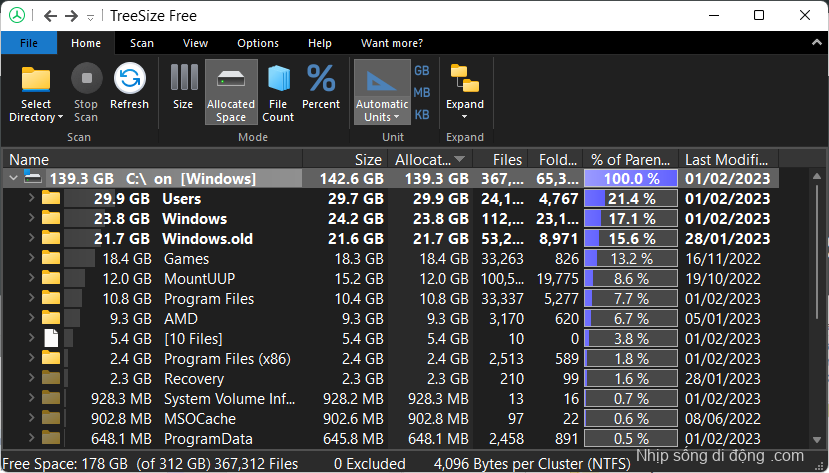
Step 3: Expand Folders and Check Folder Sizes
- Click the arrow next to a folder to see subfolders and files.
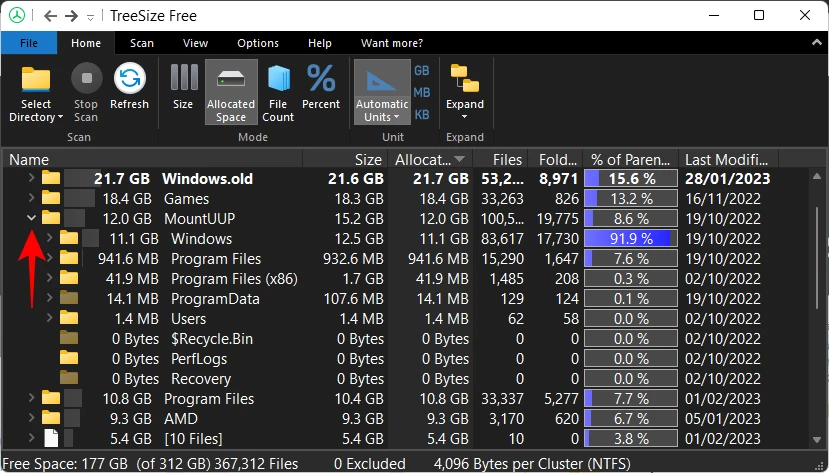
- On the left, the software shows how much space each folder occupies.
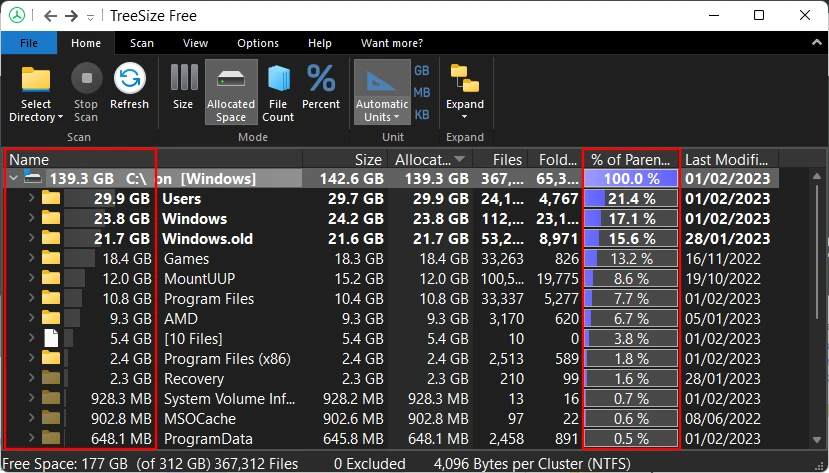
- Percentages indicate how much of the parent folder’s space a folder uses not the entire drive.
Example: The Windows folder may use 91.9% of its parent folder “MountUUP,” not 100% of the C: drive.

Step 4: Check File Count and Sizes
- Click File Count to see the exact number of files and their sizes in the selected folder or drive.

- Other options like Size and % of Parent adjust how folder usage is displayed.
- Key views to use: % of Parent (Size) and File Count for a quick overview.

Step 5: Delete Unnecessary Files
- Select the file or folder → click Delete.
- The item moves to the Recycle Bin, helping you clean up without extra confirmation pop-ups.

Step 6: Permanently Delete Files
- To permanently remove files, select the item and press Shift + Delete.
- Confirm by clicking Yes in the pop-up.
- Permanently deleting large, unnecessary files frees up storage efficiently for future use.

2. Use Treemap Charts
- Click Show Treemap Chart to visualize folder sizes in a graphical format.

- Larger boxes represent larger folders. Color levels indicate depth within the folder hierarchy.
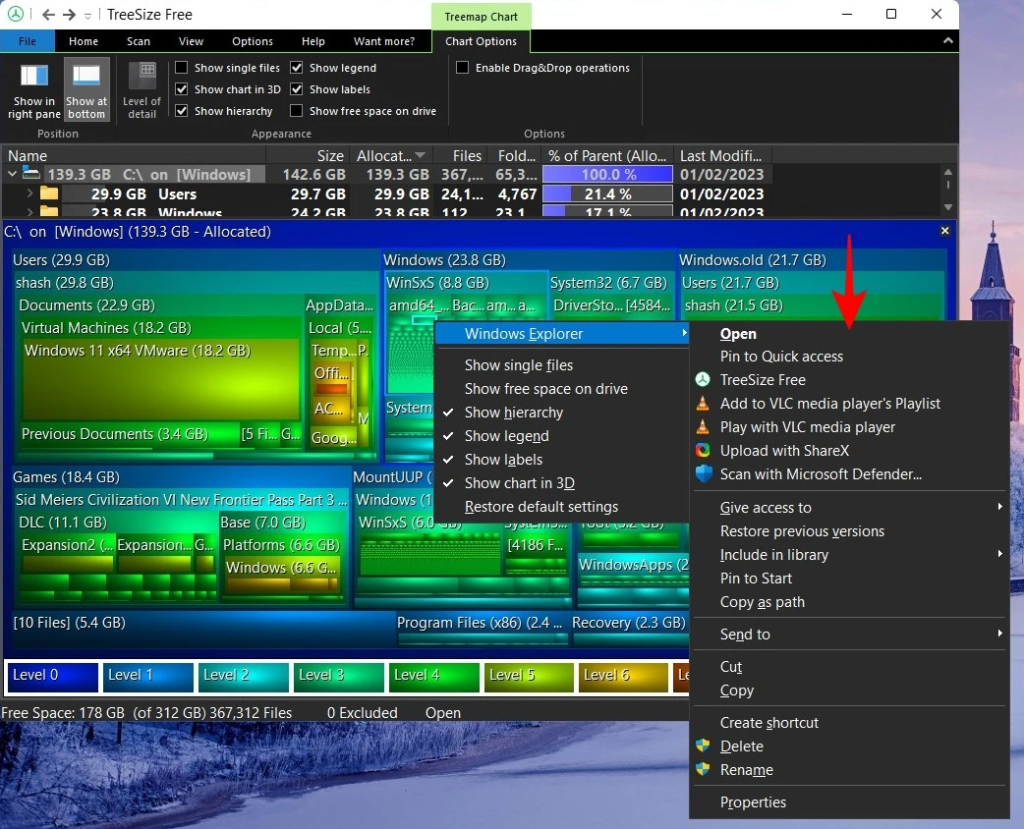
- You can also view the treemap in 3D mode by selecting Show chart in 3D under Chart Options.

Before moving forward, it’s important to understand how the treemap represents data. Larger boxes represent folders or files that occupy more space.
Example: The Games folder appears smaller than Windows because it uses less disk space.

Different shades of blue indicate folder depth within the parent folder. Example: A subfolder like Virtual Machine at level 5 is light blue, while the main C: drive at level 0 is dark blue.

The folder you select as the parent determines the treemap’s hierarchy. The parent folder is always level 0, and all subfolders and files are color-coded accordingly.
You can view the treemap in 3D by going to Chart Options and checking “Show chart in 3D”.
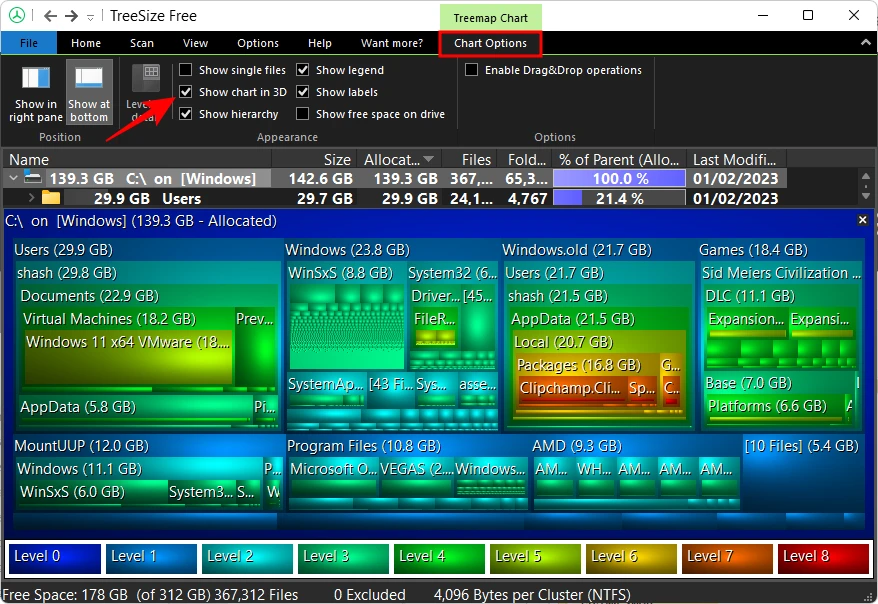
Viewing the TreeSize Treemap in 3D provides several benefits:
- Clearer Color Levels: The depth and hierarchy of folders are easier to distinguish through distinct color gradients.
- Interactive “Bubbles”: You can see visual “bubbles” representing folders or files.
- Quick Access: Clicking on any bubble allows you to instantly access that specific file or folder.
This 3D visualization makes it easier for Marketing Executives to identify large files and manage disk space efficiently.
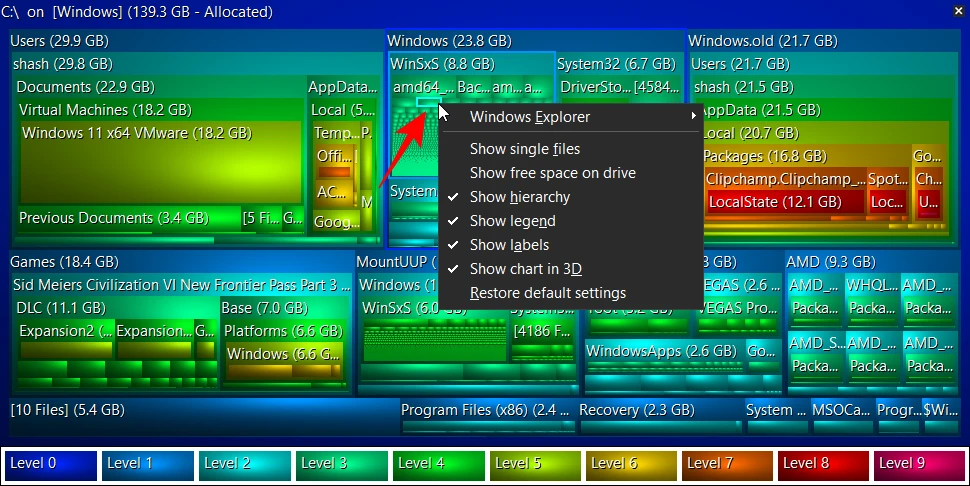
The Windows Explorer option acts as a context menu, letting you perform standard file operations directly from the treemap view.
3. Export Scan Results
- Go to the File tab → click Export → choose the desired format (HTML, CSV, XML, PDF).

- For Excel exports, a 30-day trial of the paid version is required.

Learn more:
- SEO for Ecommerce Guide: How to Optimize Your Online Store
- SEO for Healthcare: 5-Step Medical SEO Guide for Beginners
Why TreeSize Matters for Marketing Executives
As a Marketing Executive, your workflow often involves handling large datasets, media files, and project documentation. TreeSize helps you:
- Quickly identify storage heavy folders.
- Free up space to ensure smooth operations on your computer.
- Visualize data storage patterns for better planning.
- Share storage reports with IT or team members for collaborative management.
FAQ about Treesize
What is TreeSize and why should I use it?
TreeSize is a disk space management tool for Windows that allows you to quickly scan folder sizes, visualize disk usage with treemaps, and identify large or unnecessary files. Marketing Executives use TreeSize to efficiently free up storage and optimize their computer’s performance.
How do I scan my folders with TreeSize Free?
Open TreeSize Free, click Select Directory or Select Folder, and the software will scan your chosen drive or folder. The results are displayed in a tree view, showing folder sizes, file counts, and the percentage of space each folder occupies relative to its parent.
Can I delete large or unnecessary files using TreeSize?
Yes. In TreeSize Free, you can select a file or folder and click Delete to move it to the Recycle Bin, or use Shift + Delete to permanently remove it. This helps Marketing Executives quickly reclaim storage and manage disk space efficiently.
What is the Treemap Chart in TreeSize and how does it help?
The Treemap Chart visualizes folder and file sizes as colored boxes, making it easy to see which items occupy the most space. You can also view it in 3D to highlight hierarchy and quickly access files by clicking on the interactive “bubbles.” This feature simplifies disk management for professional users.
FAQ
Conclusion
In summary, TreeSize is a powerful disk space management tool that provides detailed insights into folder and file sizes, enabling efficient storage optimization. With its intuitive interface, treemap visualizations, and export options, managing your computer’s storage becomes easier and more efficient. For marketers and professionals, using TreeSize ensures that critical files remain organized and accessible, while unnecessary files are removed, freeing up valuable storage.
Learn more:
- What Is Full-Service SEO? Best Full-Service SEO in Vietnam
- How to Turn Off Google Reviews for Your Business
- Top 15 AI Architecture Software for Architects and Designers
 TOS · Search AI Agency
Get fresh SEO & AI insights — every day
Curated, practical, no spam. Join marketers who read TOS first.